How to Request PromoStandards Credentials Directly Through PSRESTful
PromoStandards credentials are what let distributors connect with suppliers electronically for product data, real-time inventory, pricing, media content, order status, invoices, and more. Every supplier manages their own credentials, so as a distributor you typically have to request them individually from each supplier you work with, by email, through a portal, or over the phone.
PSRESTful now lets you request credentials from participating suppliers without leaving the platform. You fill in your info once, pick a supplier, and send a complete, professional request in one click. This guide walks through the full process.
Step 1: Set up your Org Info (one time)
Open the Credentials page from your dashboard and switch to the Request tab.
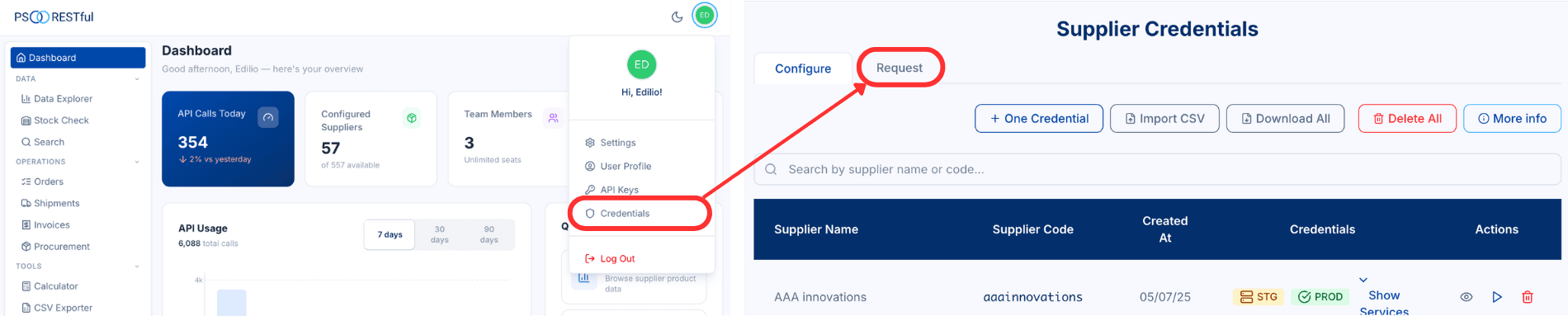
At the top you’ll find the Org Info section. This is where you enter the contact details that get attached to every credential request you send: your name, email, and phone number.
Below your contact info is a Default Message field, the actual message the supplier receives when you request credentials. We pre-fill it with a clear, professional request that asks for production credentials and lists the PromoStandards services you’ll need, including Product Data, Media Content, Pricing and Configuration, Inventory, and Invoice. You’re free to edit this message to add or remove services depending on what you need.
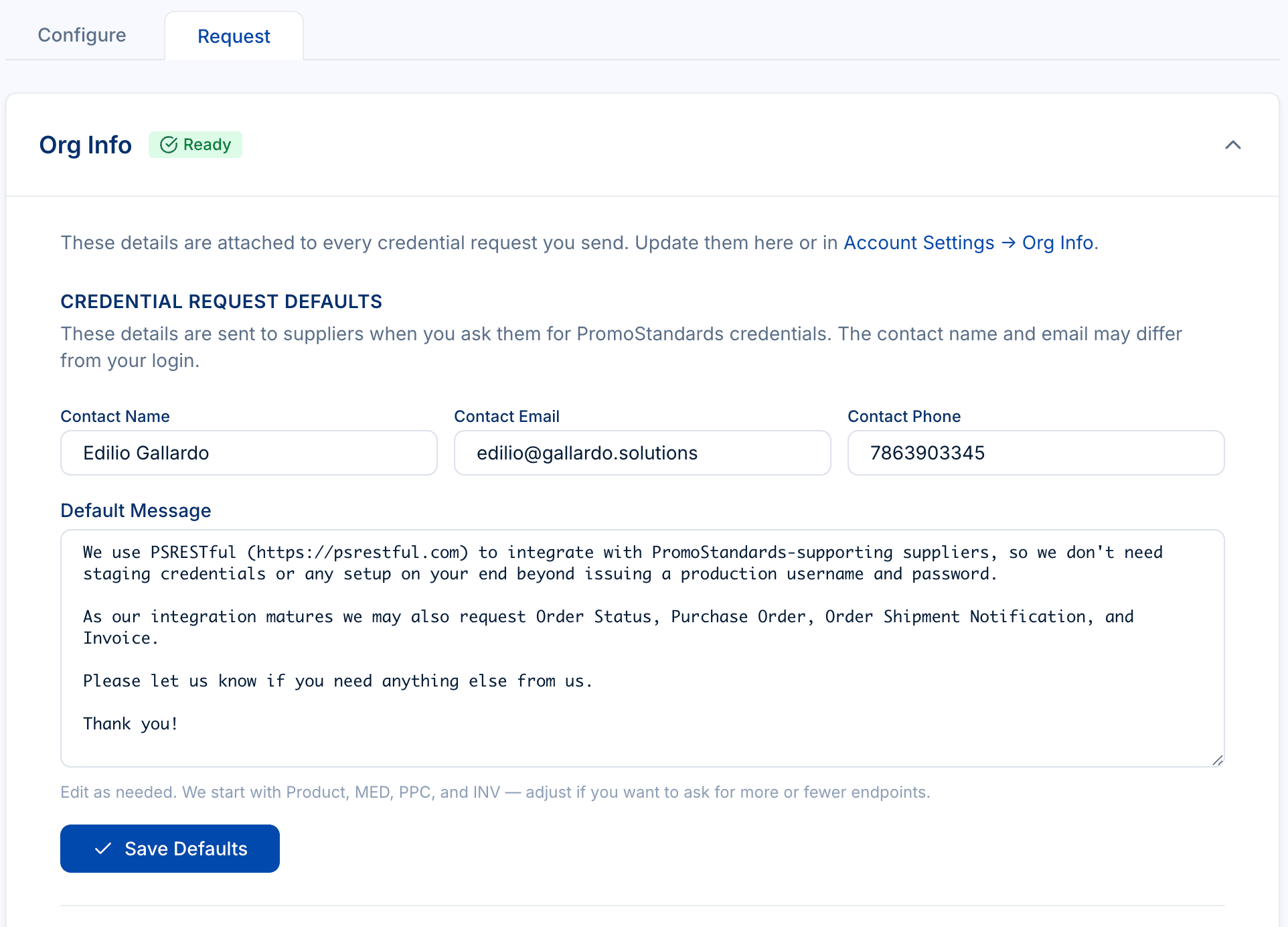
Set this up once and every future request reuses it.
Step 2: Add your industry identifiers
Scroll down to the Industry Identifiers section. This is where you store your ASI number, SAGE number, PPAI number, UPIC, or any other identifier you use in the promotional products industry. You can add multiple identifiers and mark one as your default so it gets included automatically with every credential request.
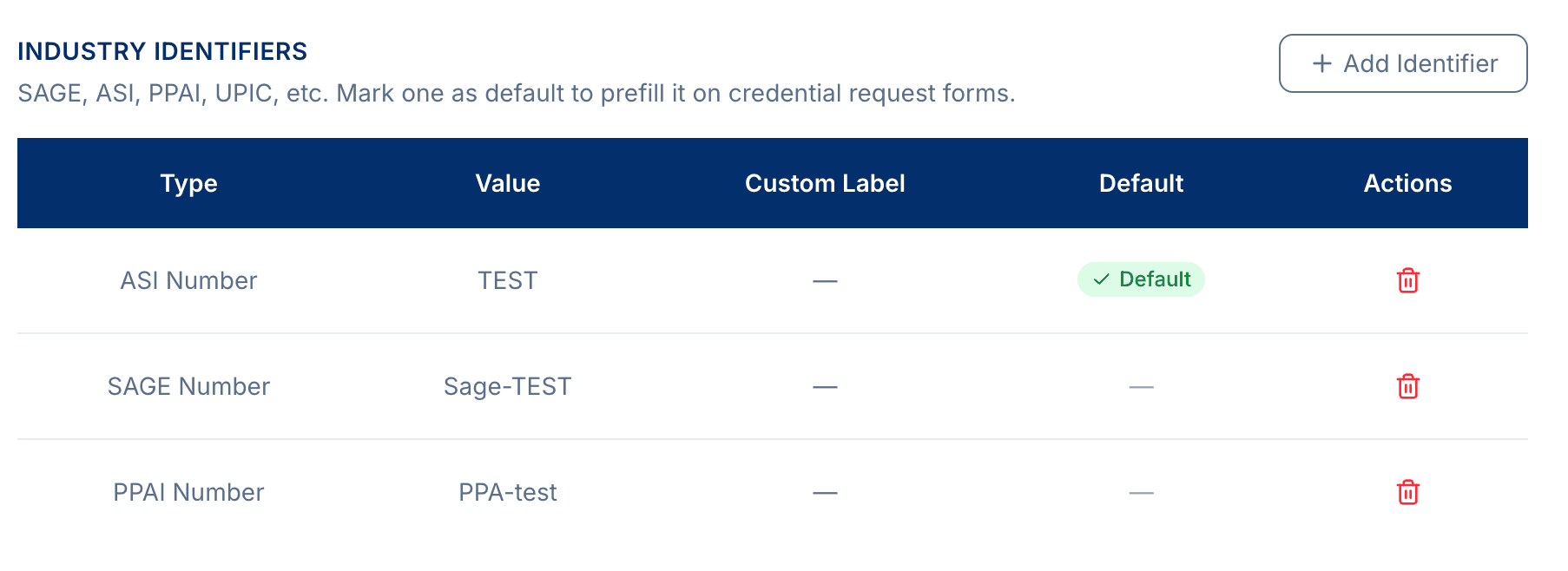
Click Add Identifier to pick a type, enter the value, and optionally mark it as your default. The supported identifier types are SAGE Number, ASI Number, PPAI Number, UPIC, and a general Other option for anything else.
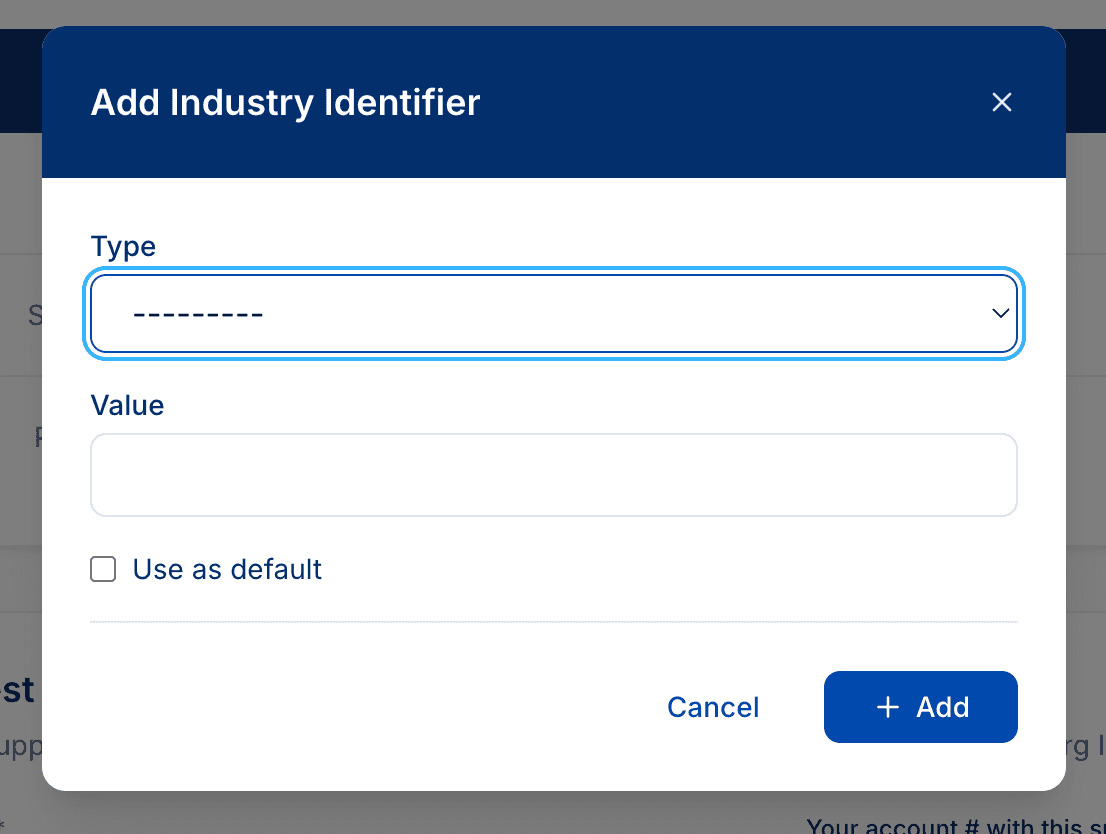
Having your identifiers attached to the request helps suppliers locate your account quickly and issue credentials faster.
Step 3: Pick a supplier and send your request
Once your profile is set up, requesting credentials takes seconds. Under the Request Credentials section, select a supplier from the dropdown. You can also enter your account number with that supplier, which is optional but helps them find your distributor record faster.
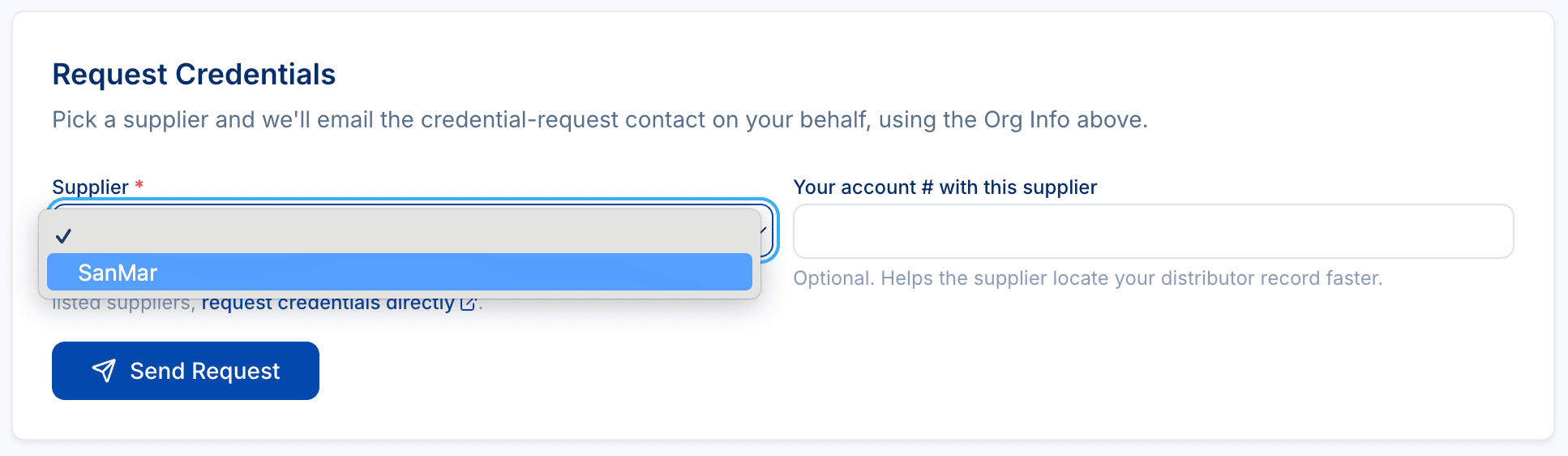
Click Send Request and the supplier receives an email with your contact info, industry identifiers, and your message. Everything they need to issue your PromoStandards credentials arrives in a single, consistent format.
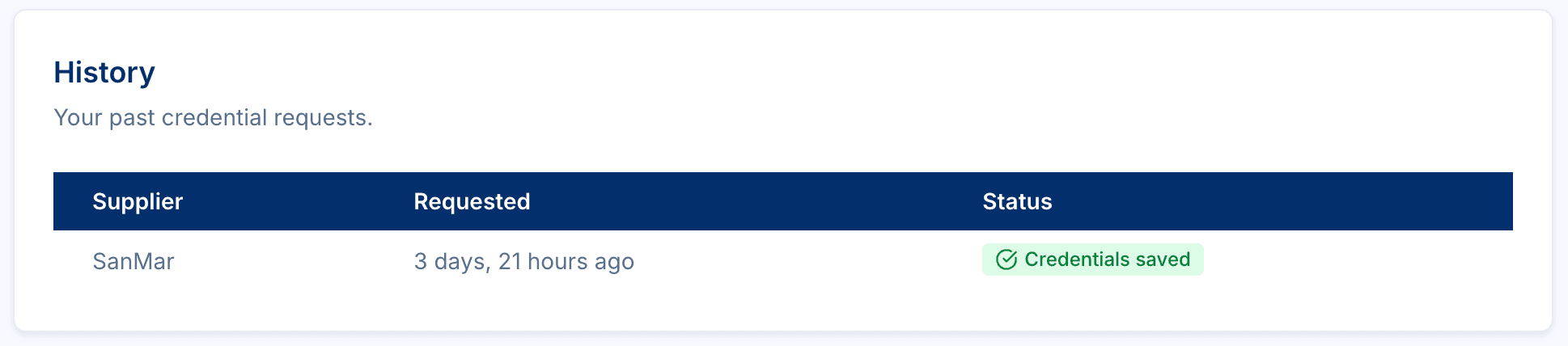
Your past requests are tracked in the History section below the form, so you always have a record of which suppliers you’ve contacted and when.
Step 4: Enter your credentials once you receive them
After the supplier issues your credentials, switch over to the Configure tab. This is your central dashboard for managing all of your supplier credentials in one place. You can add credentials one at a time, import them in bulk via CSV, or download your full list.
Each row in the table shows the supplier name, supplier code, the date the credential was created, and the current status of your staging (STG) and production (PROD) credentials. For most suppliers a single set of credentials is all you need, because the supplier serves all of their PromoStandards endpoints through one vendor.
Some suppliers, though, host different PromoStandards services through more than one vendor. That’s what Show Services is for: expand a row to see each PromoStandards service for that supplier, such as Product Data, Media Content, Inventory, Pricing and Configuration, Order Status, and Invoice, and override the main credentials on a per-service basis when a particular service lives behind a different vendor with its own login.
If you’d rather skip the request flow entirely because a supplier already gave you credentials, you can add them directly here. See our guide on configuring supplier credentials for the field-by-field walkthrough.
What are PromoStandards credentials used for?
PromoStandards defines a set of web services that standardize how product data flows between suppliers and distributors. Some of these services, like Product Data and Inventory, can work with shared agent credentials that PSRESTful already has. But services that involve your specific business relationship with a supplier, like your negotiated customer pricing, purchase orders, order status, shipment tracking, and invoices, require credentials issued directly to you.
That’s why requesting your own credentials matters. Once you have them configured in PSRESTful, you unlock the full range of PromoStandards services for that supplier, all accessible through a single REST API.
Getting started
We’re actively working with more suppliers to add them to the in-app request list. If there’s a supplier you’d like to see supported, let us know .
For a deeper look at how shared credentials and distributor credentials differ, see our full guide on Credentials and Supplier Status .