AI Search, Image Search, and Category Filters Land in PSRESTful Product Search
A while back we explained how Product Search works on PSRESTful, and earlier this spring we shipped the product detail page that pulls tiered pricing, locations, decorations, and live inventory into one view.
Since then, three things changed quietly in the same screen, and they change how you actually find products.
1. AI Search: write the brief, get the products
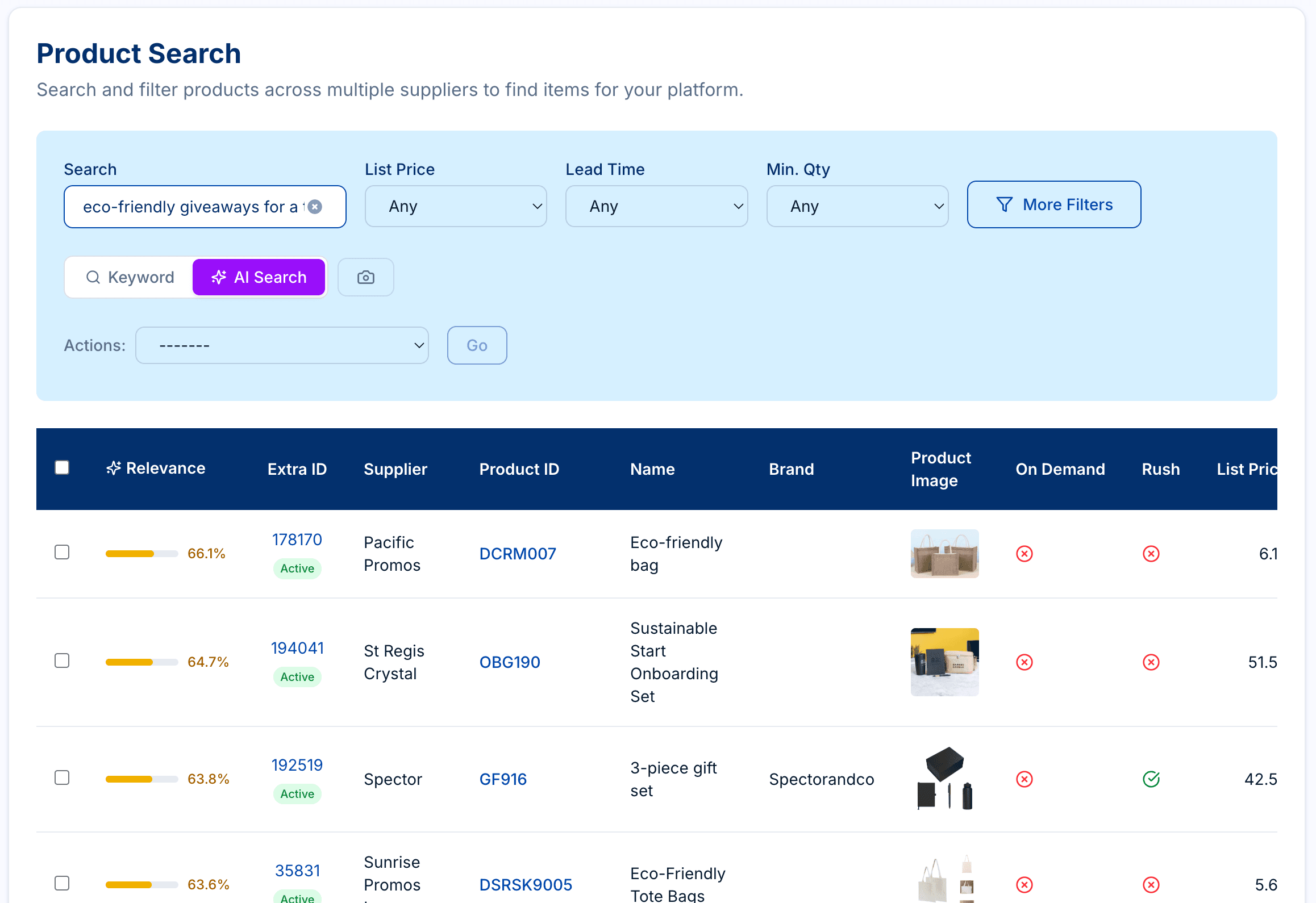
The new AI Search toggle (next to Keyword) runs a semantic search instead of a keyword match. You type the way you’d brief a colleague, with phrases like “eco-friendly giveaways for a tech startup under $5”, “made in USA stainless steel water bottles”, or “custom mugs under $10 minimum 50 pieces”, and the search engine does two jobs in parallel.
First, an LLM extracts structured filters out of your sentence: max_price=5.0, category=drinkware, country_of_origin=US, min_qty_hint=50, primary_material=stainless steel, and so on. Anything you’ve already set in the form takes precedence; anything you haven’t is filled in from the natural-language hint.
Second, the leftover semantic intent (“eco-friendly giveaways for a tech startup”, “water bottles”, “custom mugs”) is turned into an embedding and run against a vector index of every product you can see. The results come back ranked by Relevance (the green-and-grey bar in the screenshot above) instead of by SKU.
A few queries that work well today:
"trade show pens under $2 with rush"snapslist_priceinto the right bucket and setsrush_available=yes"navy polos for a corporate gift, minimum 24 pieces"snapsmin_qtyto 24-36 and resolves to thePolosnormalized category"S&S cotton t-shirts in womens cuts"resolves the supplier code, the material, and the apparel style without you touching the dropdowns
If the LLM is unsure about a filter, it leaves the words in the semantic query and lets the embedding do the work, so it won’t hallucinate a brand that wasn’t in your sentence.
2. Image Search: paste a URL, drop a file, or shoot a photo
Click the camera button next to the toggle and the image search panel slides open.
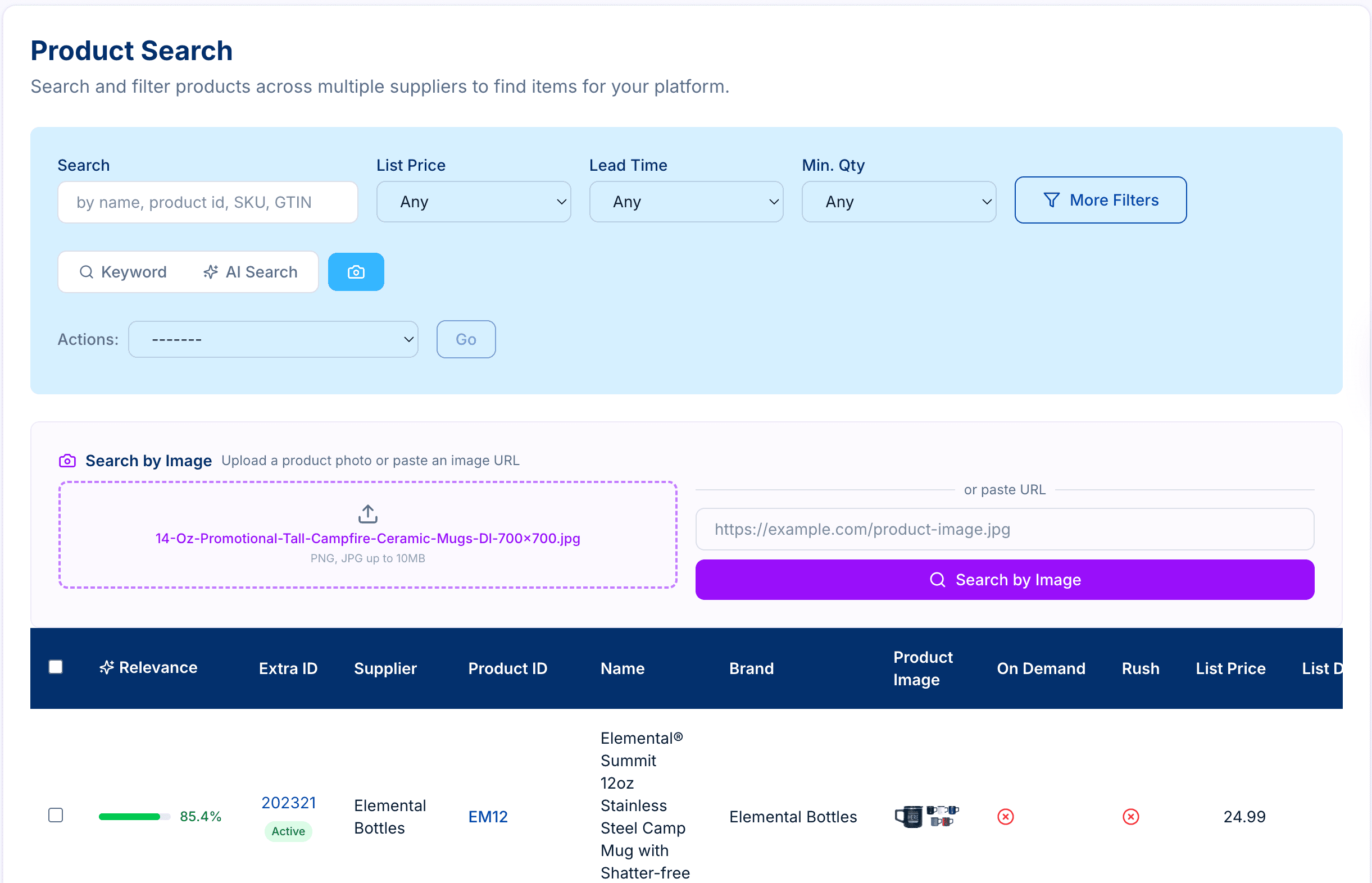
You can do three things from here:
- Drag and drop a product photo (PNG or JPG, up to 10 MB)
- Paste a URL, which works great if you’re staring at a competitor’s PDP or a Pinterest-style mood board
- Tap the upload area on a phone, where the file input surfaces “Take Photo” alongside the gallery picker on iOS and Android
That last one is the one to try at a trade show. Walk past a booth, snap the bottle on the table, and PSRESTful comes back with the closest matches across every supplier you have credentials for, ranked by visual similarity.
Behind the scenes the image becomes an embedding in the same vector space as the product images, so the same Relevance % score format applies. You can layer the structured filters (price, lead time, min qty, normalized category, brand, supplier) on top, which is useful when the visual match is good but you need it under $8 with a 7-day lead time.
3. Filter by Normalized Category and Subcategory
Both modes, along with the original keyword search, now respect the normalized_subcategory filter that we shipped a few weeks ago . One dropdown, every supplier, no fighting with Knits vs Sport Shirts vs POLO/SPORT. It also surfaces in the AI Search path: ask for “polos” and the LLM resolves it to the canonical Polos subcategory before the vector search runs.
You only see what you’re cleared to see
One thing worth saying out loud: every search mode is scoped to the suppliers you have access to. AI Search and Image Search both respect the same scope as Keyword Search. If a supplier isn’t in your account, their products don’t show up in your results, no matter how you phrase the query or what photo you upload.
Try it
The toggle is live for everyone with Product Search access. Open psrestful.com/search , flip to AI Search, and describe what you actually want. Or hit the camera, point your phone at something, and see what comes back.
If a query you’d expect to work doesn’t, send it our way. The decomposer learns from the misses.