A New, More Intuitive PromoSync: Redesigned Main Menu, Shop Overview, and Settings
We just shipped a UX refresh for PromoSync , our Shopify app that syncs PromoStandards suppliers into Shopify through PSRESTful . The functionality is the same; the way you reach it is a lot more obvious. This post walks through the three screens that changed and the documentation that landed alongside them.
Why we redesigned it
The old dashboard grew organically. Every new feature (decoration listings, link-to-PromoSync, the various bulk syncs) was tacked onto the same list of buttons, and onboarding was a single dense page. Two things suffered:
- New merchants couldn’t tell where to start.
- Returning merchants couldn’t quickly see what had run, what was scheduled, and what was still configurable.
So we split the dashboard into three distinct surfaces: a main menu for choosing what to do, an overview for seeing what has run, and a tabbed settings page for configuration.
1. The new main menu
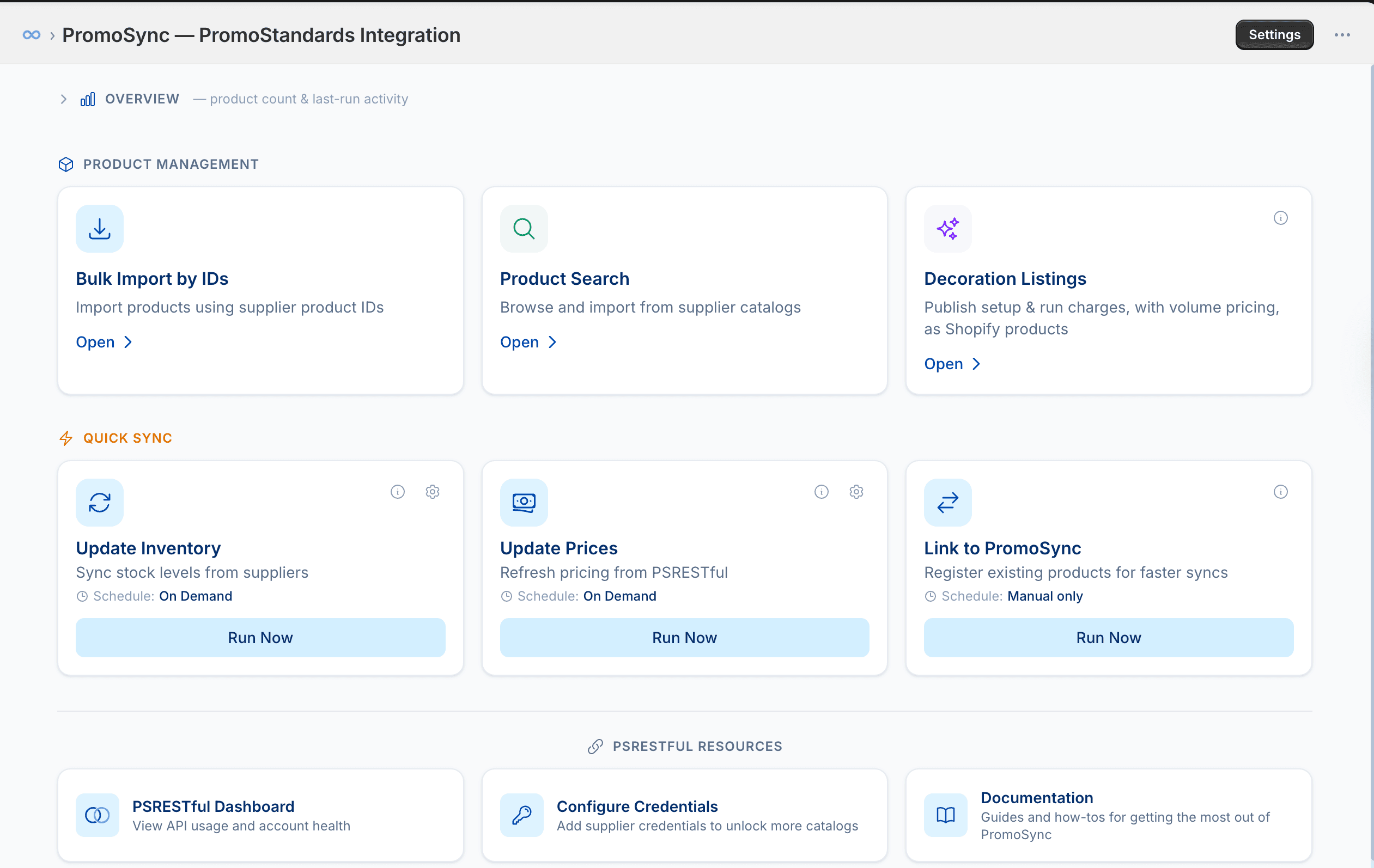
The main menu is grouped into three sections that mirror how merchants actually think about the app:
- Product Management for the things that bring product data into Shopify: Bulk Import by IDs , Product Search , and Decoration Listings (the new module that publishes setup and run charges, with volume pricing , as Shopify products).
- Quick Sync for the recurring jobs you run against products already in Shopify: Update Inventory , Update Prices , and Link to PromoSync . Each card now shows its schedule (On Demand, Manual only, or a configured cadence) right under the title, with a single Run Now button.
- PSRESTful Resources for the things you leave PromoSync to do: jumping to your PSRESTful Dashboard , configuring supplier credentials , or opening the docs .
The intent is that any task you want to do is one click from this screen, and the click target tells you what it does without you needing to remember PromoStandards vocabulary.
2. Shop Overview: at-a-glance activity
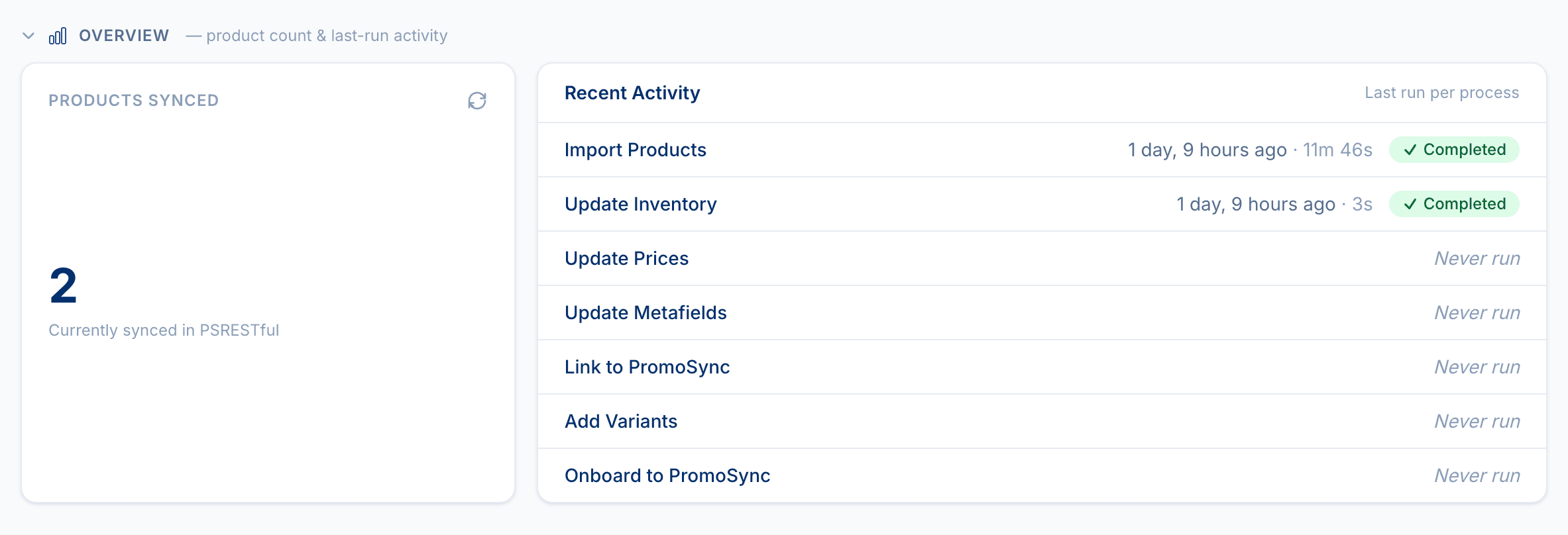
The Overview lives on the dashboard and answers the two questions merchants used to email us about:
- How many products do I actually have synced to PromoSync? The big number on the left.
- What ran, when, and did it succeed? The Recent Activity list on the right, with one row per background process (Import Products, Update Inventory, Update Prices, Update Metafields, Link to PromoSync, Add Variants, Onboard to PromoSync), each showing when it last ran, how long it took, and its status.
Processes that have never been run show Never run in italics, so the gap between “configured but idle” and “actively syncing” is visible at a glance. The refresh icon at the top of the Products Synced card pulls a fresh count without reloading the page.
3. Tabbed Shop Settings
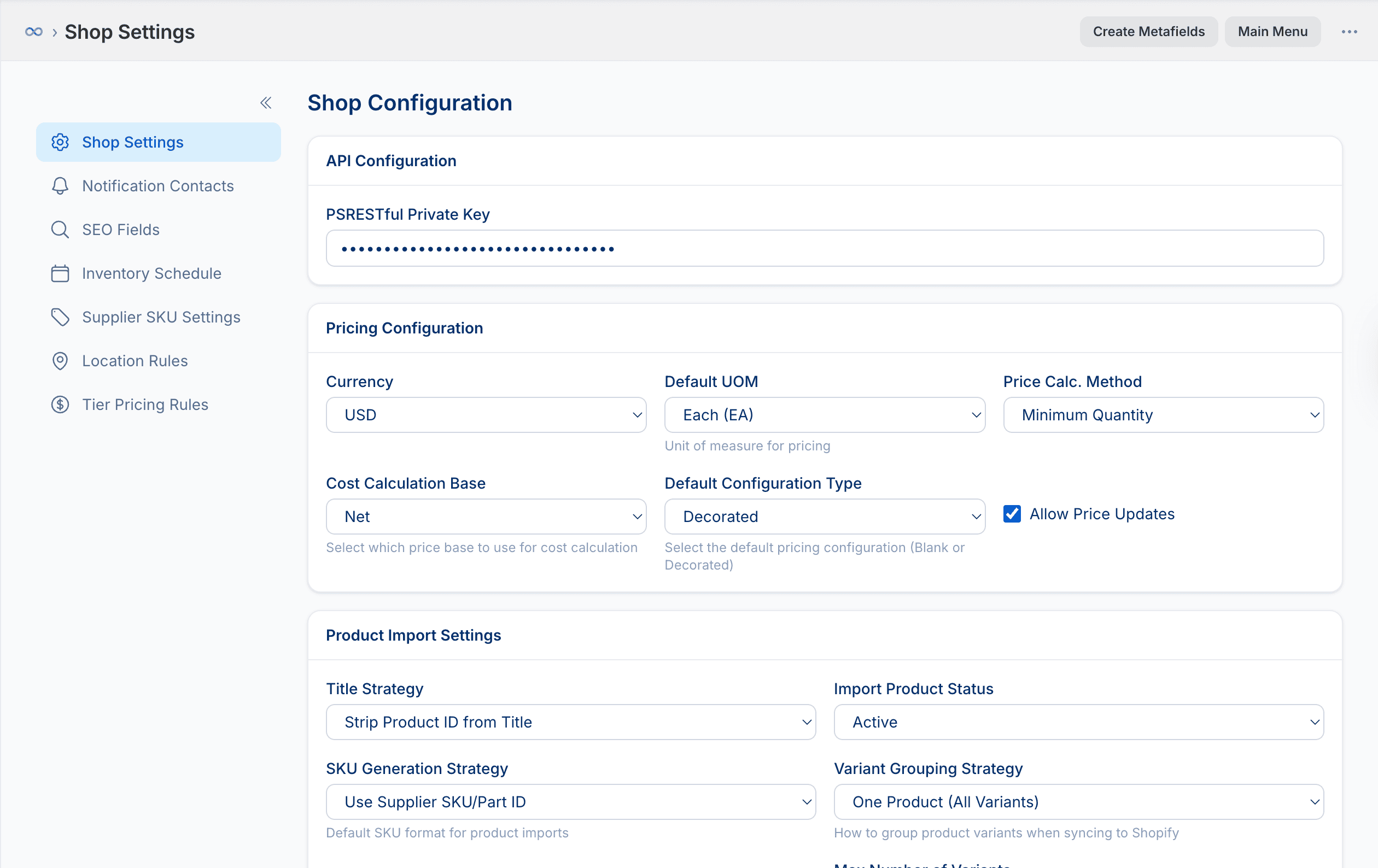
The old single settings page is now a sidebar of focused tabs:
- Shop Settings is the home tab: API key, Pricing Configuration (currency, default UOM, price calc method, cost calculation base, default configuration type, allow price updates), and Product Import Settings (title strategy, import status, SKU generation strategy, variant grouping).
- Notification Contacts controls who gets async job summaries from PromoSync.
- SEO Fields picks which PromoStandards fields populate Shopify’s SEO title and description on import.
- Inventory Schedule sets the cadence (and per-collection overrides) for Update Inventory.
- Supplier SKU Settings controls how supplier part IDs and color/size codes are combined into the Shopify SKU.
- Location Rules lets you teach PromoSync your house decoration defaults so they apply to products from suppliers that don’t ship decoration data (SanMar, S&S, and most apparel blanks).
- Tier Pricing Rules lets you define quantity-break pricing for products from suppliers that don’t publish PPC tiers, or override the supplier’s tiers with your own distributor structure.
Each tab is a self-contained page; nothing on one tab silently changes behavior on another. Tabs only appear when their underlying feature is enabled, so a shop that hasn’t turned on Default Tier Pricing won’t see the Tier Pricing Rules tab at all.
Documentation we improved alongside the release
The redesign landed with a batch of new and rewritten docs at promosync-docs.psrestful.com :
- First-time Setup : a walkthrough of the new three-step onboarding wizard (Connect PSRESTful, add a notification contact, import two sample products) with the actual wizard screenshots.
- Bulk Actions : split out of the old monolithic guide into a section with per-action pages for Update Inventory, Update Prices, Link to PromoSync, Onboard to PromoSync, Update Metafields, Add New Variants, Apply Default Decorations, and Enrich Location Decorations. Each action gets its own page covering what it does, when to use it, what it touches, and how to recover from a partial run.
- Location Rules and Tier Pricing Rules : dedicated guides for the two settings tabs above, with examples for the SanMar / S&S blanks case and the distributor-with-own-tiers case.
- Volume Pricing function and settings : how the Shopify Function applies volume pricing at checkout, plus the Min Qty enforcement scope (per variant, per product, or per line item).
- Pricing Engine app embed : setup instructions and the new Add block screenshot in the Theme Extensions overview.
- Onboarding wizard mentions in the docs home, Why PromoSync? , and Features , so first-time visitors know the wizard exists before they install.
A small renaming worth knowing
While we were in there: the bulk action previously known as Update Metafields + Link to PromoSync is now just Onboard to PromoSync, and there’s a dedicated guide for it . The behavior is identical; the old name confused too many merchants into thinking it was two separate things.
Try it
If you’re already on PromoSync, the new UI is live now; open the app in your Shopify admin and you’ll land on the Overview the next time you open the dashboard. If you haven’t installed it yet, the three-step onboarding wizard is the fastest way to see it end to end, and it imports two sample products so you can inspect a finished PromoSync listing before importing your full catalog.
Feedback, as always, goes to our contact form .